1. How do I create a simple database?
This example sets up a database containing a single table, and a Data view dialog that
edits the table records. Following these steps you can quickly learn how to write database
programs. The example database is the world.xml file included in the c:\program files
\Ubercode \examples \dbfiles directory. It contains the names and populations of most of the
countries in the world.
- Start the Developer Environment.
- Choose the File - New - Program command from the menu. A properties dialog will appear
that allows you to choose the program details.
- Check the program is being created in the directory you want. You can type in a different
directory or press the small button next to the entry field.
- After choosing the directory, click in the entry field next to "Program Type", delete the
existing text and type in "2" instead (without the quotes). Press OK after making these
changes.
- Several new windows will appear. There is a code editor containing some text, and a
program window which shows all the files in the program. The program exists in a skeleton
form, but does not yet contain any code. If it was compiled and run at this point, it would not do
anything.
- Now add the Data Source to the program, using the Program - Add Data Source command. The
Add Data Source dialog looks like this:
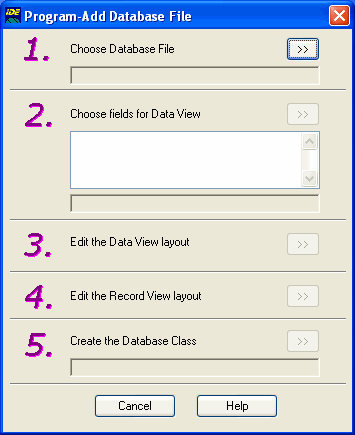
- Now follow the numbered steps in the dialog.
- The first step chooses the Data Source, which should be c:\program files \Ubercode \examples
\dbfiles \world.xml. When browsing for the Data Source, click next to "Files of type" and
scroll through the list until you see XML files. This makes the Add Data Source dialog show XML
files instead of DBF files.
- Step 2 chooses the fields shown in the Data View dialog. Choose all the fields by clicking the
"Copy all fields to Data View" button (the double right arrow). Then make the name field
into the key field by double clicking it. Click OK to close the dialog
- Steps 3 and 4 confirm the Data View and Record View by opening them in the dialog editor. Here
you need to close the dialog editor window and confirm the changes.
- Step 5 creates the Database class, which may take a moment. When step 5 is complete, close the
Add Data Source dialog.
- At this point the database class has been added to the program. If you look in the program
window you will see the new files, which include the class, the window layouts and the Data
Source.
- Add the following function to the main class:
  function worldDataView()
  var
    db : Tworld[*](external)
  code
    call TabOpen(worldFile(), db)
    call DataView("Data View", 1, db)
    call TabClose(worldFile(), db)
  end function
You can copy the function from the browser window, or from the top of the world.cls file
where it is stored as a comment.
- The worldDataView function opens the Data Source, passes it to the DataView, then closes
the database when the DataView is closed.
- In the main class, go to function main() and change the line:
// Put code here
to read:
call worldDataView()
This calls the Data View dialog and uses it to edit the world.xml file.
- Click the Run button which saves, compiles and runs the program. You may need to wait a few
moments for the program to compile.
- When the program runs, you should see the Data View dialog which looks like this:
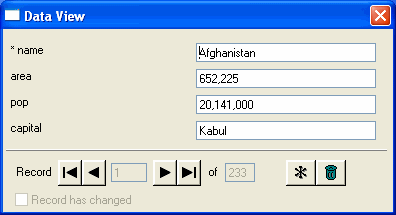
- The Data View has buttons for moving through the records, moving to the first and last record,
and creating and deleting records. If you make changes to a record, the changes are saved when you
move to a different record (like Microsoft Access).
- Close the Data View to end the program.
If you want to change the example, you can edit the Data View dialog and hide fields, or make
fields read-only, or change the layout. Also there are routines for printing the Data Source,
changing to a table view, or looping through all the records. The comment at the top of the
World class has skeleton code for these routines.
Also you can add more Data Sources to the program. To do this, use the Add Data Source dialog
again to choose the new database. Databases should be in Dbase format, CSV text format, or XML
format. XML databases should consist of repeated records having the same fields.
Whenever you add a Data Source, a new class and dialogs are created for the database. The class
contains routines (in the comment at the top) for editing and printing the database. These routines
can be copied into the main class and changed as required.
If you want to remove a Data Source from the program, highlight it in the program window and use
the "Remove" button. You have the option of permanently deleting the files from disk. This is
useful if you want to experiment by repeatedly adding and removing the same Data Source.
The c:\program files \Ubercode \examples \dbfiles directory also contains back-up copies
of the databases. This is in case you edit the database, and want to restore it to its original
state.
2. How do I loop through the rows in a table?
Find the first record, then set up a loop which fetches the next record. For example:
  // assumes Ttable[*] is already declared

  function LoopThroughTable()
  var
    rec:Trecord
    tab:Ttable[*]
    status:integer(0:MAXINT)
  code
    Tabopen("data.dbf", tab)
    Tabfind("FIRST", tab, 1, status, rec)
    while status /= 0
      // Use rec here. The only constraint is don't alter the indexed fields!
      // eg SomeFunc(rec)
      Tabfind("NEXT", tab, 1, status, rec)
    end while
    Tabclose("data.dbf", tab)
  end function
It is also possible to do this using an iterate loop. For example:
  // assumes Ttable[*] is already declared

  function LoopThroughTable2()
  var
    rec:Trecord
    tab:Ttable[*]
  code
    Tabopen("data.dbf", tab)
    iterate rec through tab
      // Use rec here. The only constraint is don't alter the indexed fields!
      // eg SomeFunc(rec)
    end iterate
    Tabclose("data.dbf", tab)
  end function
|
 to test this page.